Uncensored AI Photo Editing
Uncensored Fibo 2.0 Edit: Restyle Any Photo With One Sentence
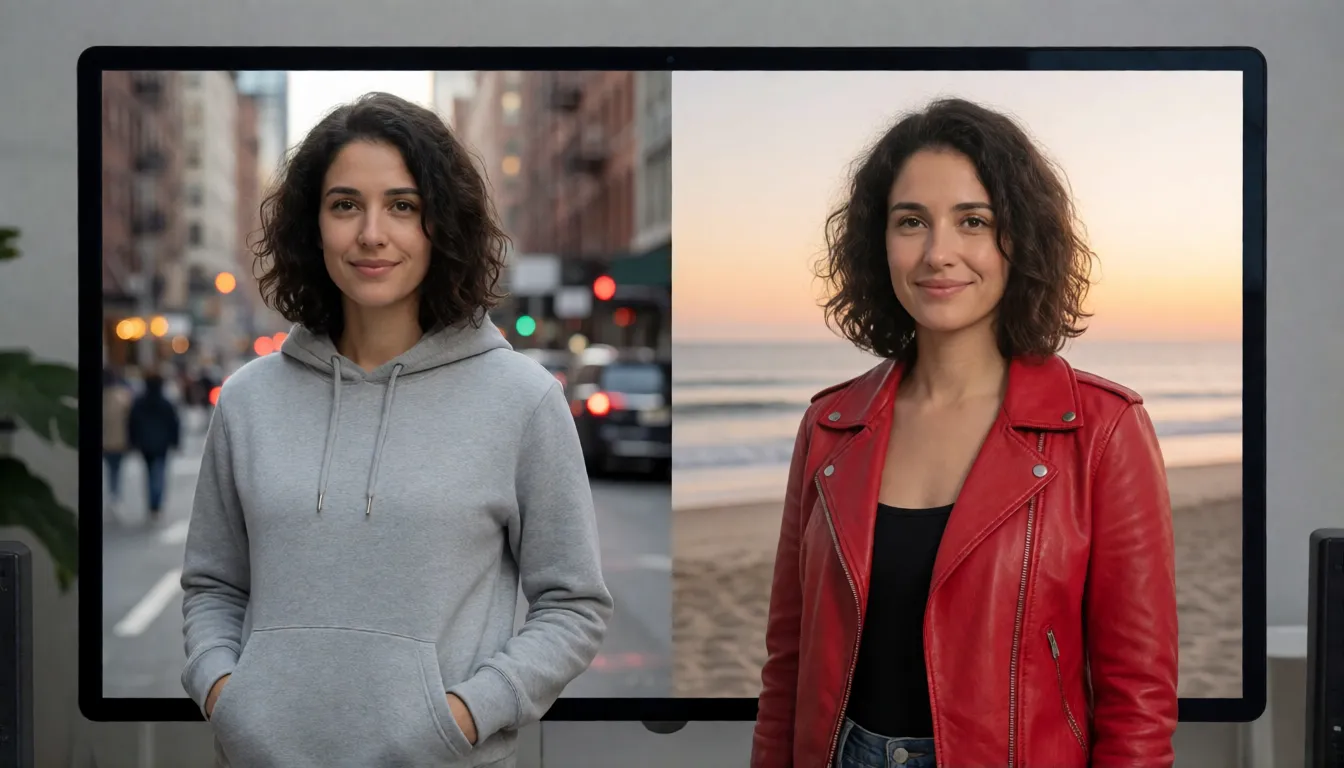
Type what you want changed and watch the photo follow. Fibo 2.0 Edit from BRIA AI swaps a jacket, recolors a product, moves a portrait to the beach or turns a grey noon into a warm sunset, while the face, the pose and everything you did not mention stay exactly where they were. Below you will find the fun part: one-line edits, paint-to-change touch-ups, four-photo mashups, ready-to-copy prompts and the easiest ways to start.
- One-sentence edits
- No filters
- Runs in browser
Uncensored Alternative Image Generator
Text to imageDescribe the change you want. Add a reference photo to edit it, or leave it empty for text-to-image.
Why one-sentence editing feels like magic
Most AI editors make you wait, guess and wait again. This one is built for speed: an edit comes back in a few seconds, so trying five different looks takes about as long as one used to. You do not need special prompt tricks either. Plain everyday English such as "replace the jacket with a red leather one" or "make it rain on the street" is enough, and the editor understands which part of the picture you mean. Because the rest of the photo is left alone, it feels less like generating a brand-new image and more like having a quick, patient retoucher who redoes the shot as many times as you like.
Everyday edits you can make with one sentence
The simplest way to use the editor is a single photo plus a single instruction. Describe the object, the change and what must stay, and the rest of the image is meant to remain untouched. Because each try is so quick, you can nudge the wording until the result is exactly right instead of settling for the first draft. Popular one-liners include:
- Outfits: "Replace the jacket with a red leather one" (the example BRIA itself uses), or swap a T-shirt for a linen shirt.
- Colors and materials: turn a matte sofa into green velvet or a white sneaker into tan suede.
- Backgrounds: move a portrait from a grey office to a rooftop at golden hour.
- Add or remove: drop a coffee cup onto the table, or clear a stranger out of the frame.
- Light and mood: noon becomes sunset, a dry street gets rain, summer turns into snowy winter.
Paint over a spot and change only that part
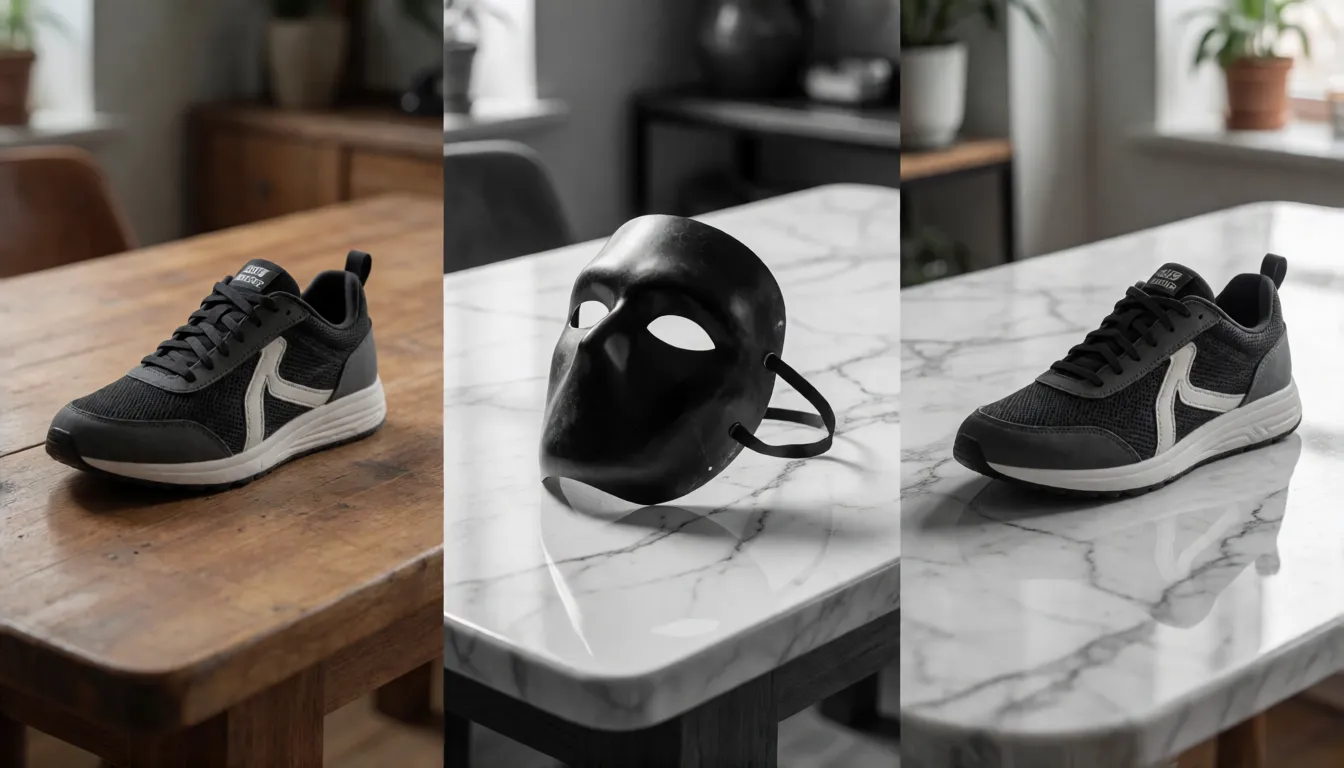
When a sentence alone is too loose, brush over the part you want changed. Only the painted area is redrawn and every other pixel stays as it was. That makes it perfect for touching up product shots, replacing a single garment, swapping the drink in someone's hand or removing a stain on a tablecloth without disturbing the face or the lighting anywhere else in the picture.
Paint a little wider than the object so the edit can blend shadows and edges naturally. Add a short line such as "marble countertop with soft reflections" and you get shop-ready photos in seconds.
Mix up to four photos into one scene
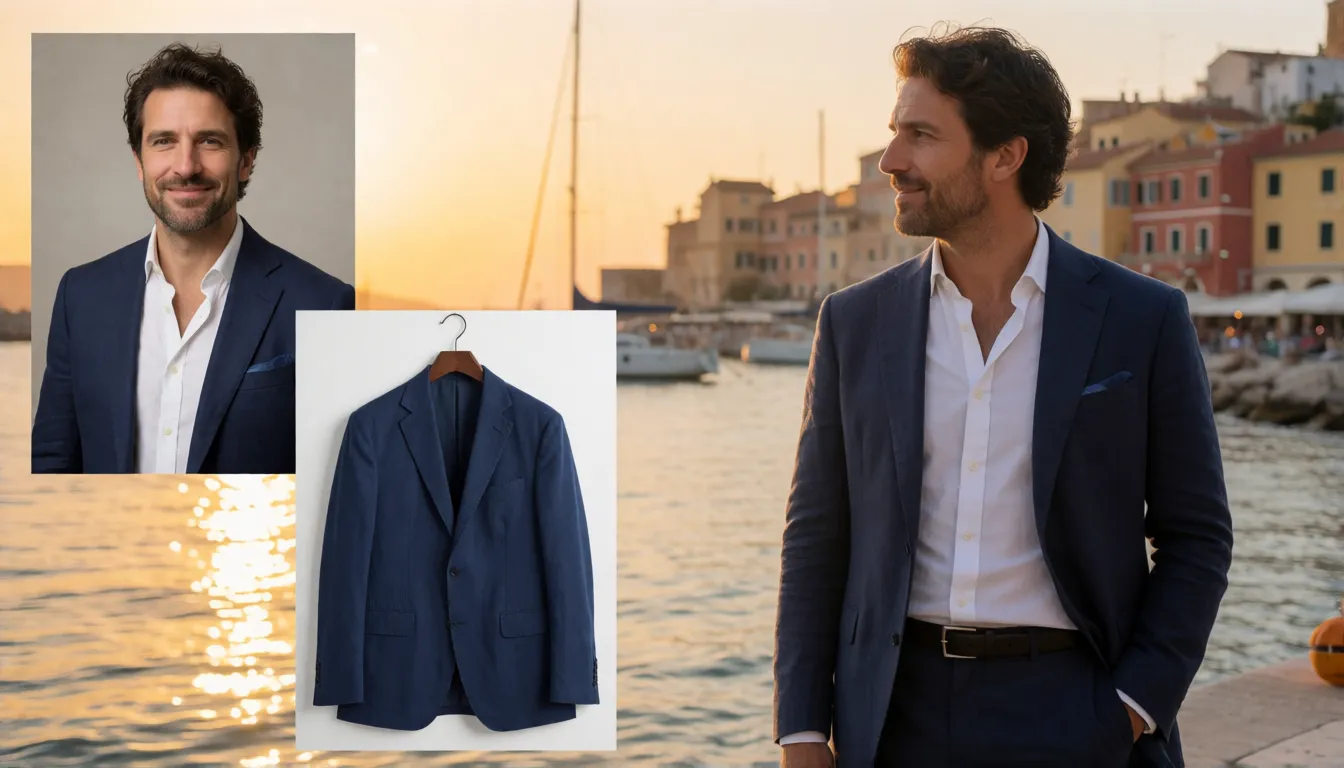
This is where it gets creative. Add up to four photos and mention them in order as <image_1>, <image_2> and so on. Put the person from the first photo into the place from the second, dress them in the outfit from the third and hand them the product from the fourth. Shops use it to show one model in many settings, and storytellers use it to keep the same character, costume and set across a whole series of pictures.
Where creators are putting it to work
Speed plus precise control opens up jobs that used to need a photoshoot. Online shops recolor one product across a whole catalog or drop it into seasonal scenes. Short-drama and social media teams restyle the same character for thumbnails, storyboards and episode covers. Photographers fix weather, light and small distractions after the shoot. And for adult creators (18+), the most requested edits are wardrobe and setting swaps on fictional or consenting models, such as bikinis, swimwear and lingerie by the pool or on the beach.
Catalog recolors
One product shot, every color in the range, plus seasonal backgrounds without a reshoot.
Character continuity
Keep the same face and costume across thumbnails, storyboards and episode covers.
Swimwear and beach looks
Restyle an adult model into a bikini or swimsuit and move the scene to a pool or a sunset beach.
- Name the object, the change and what must stay.
- Put every limit into the sentence itself, such as "keep the face unchanged".
- Use a slightly oversized mask for clean edges.
- Only edit photos of adults (18+) that you own or have permission to change.
Copy-ready editing prompt templates
Good instructions name three things: what to change, how it should look and what must stay the same. Saying "don't" in a separate box does not help here, so write every wish into the sentence itself. Fill in the brackets and paste:
| Goal | Template |
|---|---|
| Outfit swap | Replace the [garment] with a [color] [material] [style]; keep the face, pose and background unchanged. |
| New background | Change the background to [scene]; keep the subject identical and match the lighting. |
| Masked fill | Fill the masked area with [object], consistent perspective and shadows. |
| Four-photo composite | Put the person from <image_1> into the scene of <image_2>, wearing the outfit from <image_3>. |
| Swimwear restyle (18+, fictional model) | Change her outfit to a [color] bikini on a beach at sunset; keep face and body proportions unchanged. |
| Style change | Turn the photo into [style], keep the composition. |
Tip: short, specific sentences beat long lists. If one edit asks for too much, split it into two passes.
How it compares with other popular photo editors
Earlier Fibo releases were mainly for creating pictures from scratch. This edition is made for changing the photos you already have, with three ways to work: type a sentence, paint over an area, or mix several pictures. BRIA says it was ranked first among open image editors on the Artificial Analysis leaderboard as of October 20, 2026. Here is how it feels next to two well-known alternatives:
| Fibo 2.0 Edit | Qwen-Image-Edit | FLUX.2 | |
|---|---|---|---|
| Photos you can mix | Up to 4 | Up to 3 | Up to 10 |
| Paint-to-change area | Yes, built in | No separate option | No separate option |
| Speed | Very fast, a few seconds | Slower | Slower |
| Best at | Quick retouches that keep the face | Text and detailed edits | Rich new scenes |
The easiest ways to start editing
You do not need a powerful computer to have fun with it. The quickest route is a browser: upload a photo, write one sentence and download the result. If you like tinkering, the model is also free to download and works in popular home setups such as ComfyUI, where ready-made workflows cover sentence edits, painted areas and photo mixing. For most people, though, starting online is simply faster.
- Start with a clear, well-lit photo where the subject is easy to see.
- Change one thing at a time, then build up the look in a few rounds.
- Save the versions you like so you can compare them side by side.
- Want a bigger change? Mix in a reference photo of the outfit or place.
Is there an uncensored Fibo 2.0 Edit?
People look for an uncensored version because many online editors refuse harmless adult requests, such as changing a swimsuit color or moving a boudoir portrait to a hotel suite. BRIA's own hosted tools apply content filters and block celebrity faces.
Not as a separate release. So far, nobody has published an official or community uncensored version, and the model was trained on safe-for-work pictures, so it stays weak at explicit detail even when you run it at home. For adult (18+) edits in the browser, Spicy AI's image editor offers similar unfiltered photo editing.
Upload a photo and restyle adult content without filters.
Open the image editor →Running it at home vs editing online on Spicy AI
| At home (downloaded model) | Spicy AI online | |
|---|---|---|
| Content filters | Safe-for-work training | No content filters |
| Setup | Download and install tools | Nothing to install — runs in the browser |
| Speed to first edit | After setup | Seconds |
| Good for | Tinkerers with a strong computer | Anyone with a photo and an idea |
FAQ
What is Fibo 2.0 Edit?
It is a fast AI photo editor from BRIA AI. You change a picture by typing a sentence, painting over an area or mixing up to four photos, and the parts you did not mention stay the same.
Do I need to write special prompts?
No. Plain sentences work best, for example "change the background to a snowy mountain, keep her the same". Name the thing, the change and what must not move.
Can it keep the same face?
Yes, that is one of its strengths. Say "keep the face and pose unchanged" in your instruction and edit one detail at a time for the most faithful results.
Does a "don't" list help?
Not really. This editor ignores separate negative prompts, so put your limits right into the sentence, such as "keep the background unchanged".
Can I try it online?
Yes. BRIA hosts a free demo on Hugging Face and its own platform, and you can also open Spicy AI's image editor in the browser without installing anything.