Kling 3.0: Direct a Whole Scene From a Single Prompt
Kling 3.0 is the video model Kuaishou's Kling AI released in early February 2026, and it feels less like a clip generator and more like a small film crew. One prompt can return up to 15 seconds of footage that cuts between several camera angles, keeps the same characters in every shot and comes with spoken lines, sound effects and ambience already mixed in. Short-drama makers, ad teams and meme channels picked it up quickly. Below you will find what changed from earlier versions, where people use it, how the multi-shot storyboard works, and prompt templates you can paste straight in.
Make a multi-shot style video →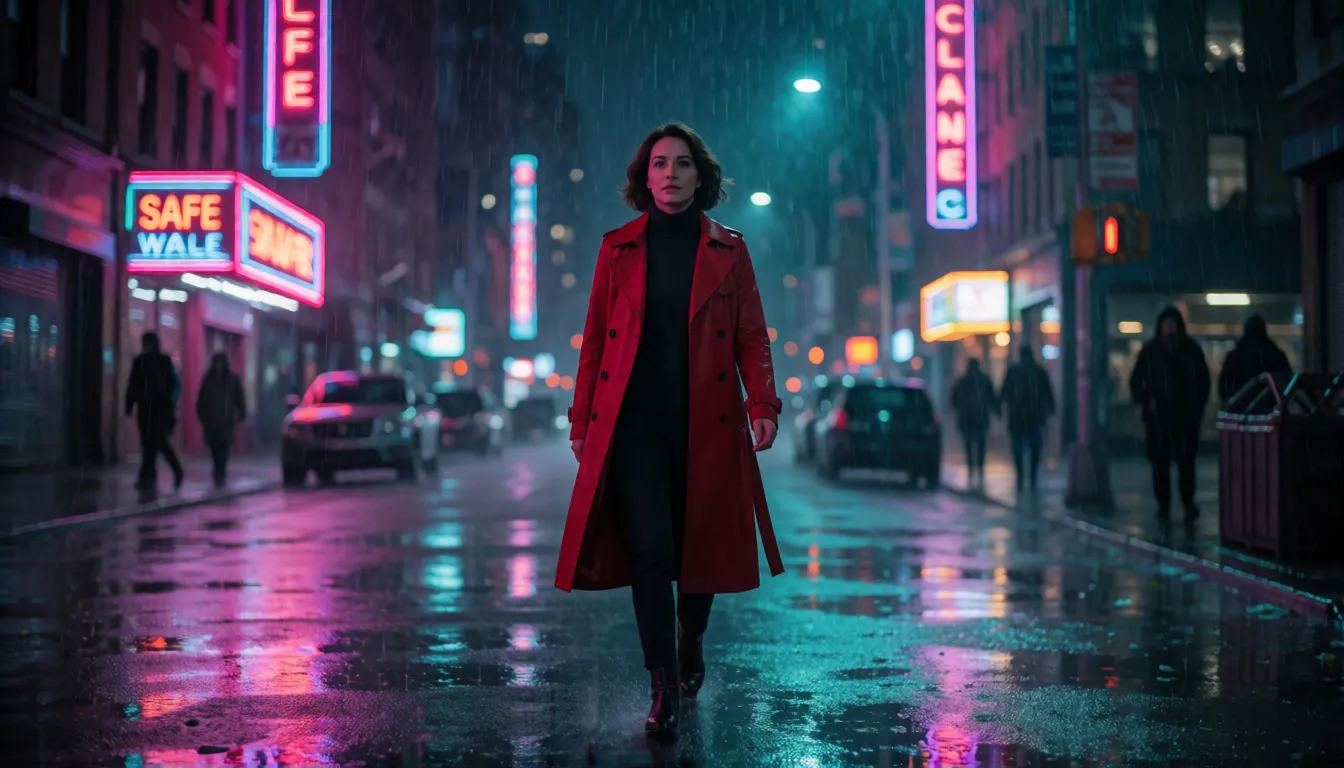
Uncensored Alternative Video Generator
Image to videoUpload a start frame and describe the action, camera move and mood. The clip is generated from your image.
Try a prompt
Example prompts are in English, which gives the most reliable results.
A director's model: 15 seconds, several shots, sound included
Most AI video tools hand you one continuous shot and leave the editing to you. This one changes that habit. You describe a scene, or write it shot by shot, and the model plans the cuts itself: a wide establishing view, a close-up on a face, a reverse angle for the reply. According to Kling AI's launch announcement, the release brought four models at once, Video 3.0, Video 3.0 Omni, Image 3.0 and Image 3.0 Omni, with upgrades focused on consistency, photoreal detail, clips of up to 15 seconds and native audio in multiple languages, dialects and accents.
The result is that a single generation can already work as a finished beat of a story. Guides published after launch describe a range of 3 to 15 seconds per clip and up to about six camera changes inside it. It is a closed commercial service: you use it through the Kling app and website, or through the API on Kling's developer platform and partner hosts, and there are no public model weights to download.
Kling 2.6 and O1 got people hooked — here is what the new version adds
Kling 2.6 was the version that made voices and sound effects come out together with the picture, and Kling O1 let people edit and restyle clips with reference images. Both spread fast on social media. The new version folds those two ideas into one model and then stretches them: longer clips, real scene cutting and characters that survive from shot to shot. If you already know the earlier versions, this table shows only what is different.
The trade-off is that more control asks for more planning. Reviewers note that the Custom storyboard mode rewards people who think like an editor, while a vague one-line prompt still produces generic footage.
| Kling 2.6 / O1 | Kling 3.0 | |
|---|---|---|
| Clip length | 5 or 10 seconds | 3 to 15 seconds, chosen by you |
| Camera | One continuous shot | Multi-shot storyboard, up to about 6 cuts |
| Audio | Native sound and voice, mainly Chinese and English | Lip-synced dialogue in Chinese, English, Japanese, Korean and Spanish, plus accents |
| References | Reference editing lived in O1 | Omni version takes several reference images and videos as locked elements |
| Consistency | Faces could drift between generations | Same character, outfit and props held across every shot |
Where creators are putting it to work
The appeal is simple: fewer clips to stitch together, and dialogue that arrives already synced. That is why the same handful of use cases keep showing up in creator feeds and tutorials.
- Vertical micro-dramas: a two-person argument with shot and reverse shot, generated in one pass instead of six separate clips.
- Product ads and e-commerce: a macro close-up of the product, a model holding it, and a spoken line about it, all in one 15-second spot.
- Music videos and trailer-style edits: fast cuts between moods and angles that follow the beat of a track.
- Localized voice-overs: the same presenter speaking English, Japanese or Spanish with matching lip movement.
- Recurring characters: one mascot or virtual host who looks the same in episode after episode of a social series.
Multi-shot storyboards: let it cut, or call every shot
The storyboard feature is the headline of this release, and it comes in two styles. Smart Storyboard reads a normal scene description and decides on its own where to cut and which angle to use, which is ideal when you want speed. Custom Storyboard lets you set each shot yourself: how long it lasts, where the camera sits and what happens in it. Think of Smart as handing the script to a director, and Custom as sitting in the edit suite.
- Start with Smart mode to see how the model reads your idea, then switch to Custom to fix the shots you did not like.
- Keep each shot to one clear action; two people talking plus a camera move plus a lighting change in one shot is where things blur.
- Add up the seconds: the shots in a Custom board should fit inside the total clip length you picked.
Dialogue, sound effects and lip sync in one go
Sound is generated together with the picture, so footsteps land when feet touch the ground and rain sounds like the rain on screen. Spoken lines are where it really stands out: third-party guides report lip sync for Chinese, English, Japanese, Korean and Spanish, and the launch announcement highlights dialects and accents as well. The trick is to write the line exactly as it should be said, in quotation marks, and to name who says it and how. A note such as in Japanese, whispering or with a light British accent shapes delivery far more than adjectives about the mood.
For ads and explainers this removes a whole recording step. For drama it means a shot and its reply can share one generation, with each character keeping a distinct voice, which is exactly what makes those viral two-person scenes work.
Keeping the same face, outfit and props across every shot
Nothing breaks a story faster than a hero whose face changes between cuts. The model tackles this with references: upload one or more images of a character, object or location, and the Omni model treats them as fixed elements to carry through the scene. Creators building series with the same host or couple across many episodes lean on this heavily.
- Use a clear, well-lit reference of the face plus one full-body image for the outfit.
- Give the character a short name and repeat it, with two or three key look words, in every shot of the prompt.
- Keep wardrobe words identical from episode to episode; changing red trench coat to scarlet coat invites the model to redesign it.
Prompt templates you can copy and adapt
A dependable single-shot structure has five parts: subject details, action, camera movement, environment, and style or lighting. For multi-shot scenes, label each shot, give it a duration and keep dialogue in quotes with the speaker named. Swap in your own characters and settings; the structure is what does the work.
- Camera words the model responds to well: tracking shot, orbital pan, macro close-up, POV, whip-pan, slow push-in, static wide shot, handheld with subtle drift.
- Write the language and tone next to each line of dialogue, for example: in Korean, excited.
- Draft quickly in the Turbo version, then render the keeper with the standard model.
[Subject] a woman in her thirties with short silver hair and a leather jacket
[Action] lights a cigarette and glances over her shoulder
[Camera] slow push-in, shallow depth of field
[Environment] empty subway platform at 2 a.m., flickering lights
[Style] cinematic, cold blue tones, light film grain
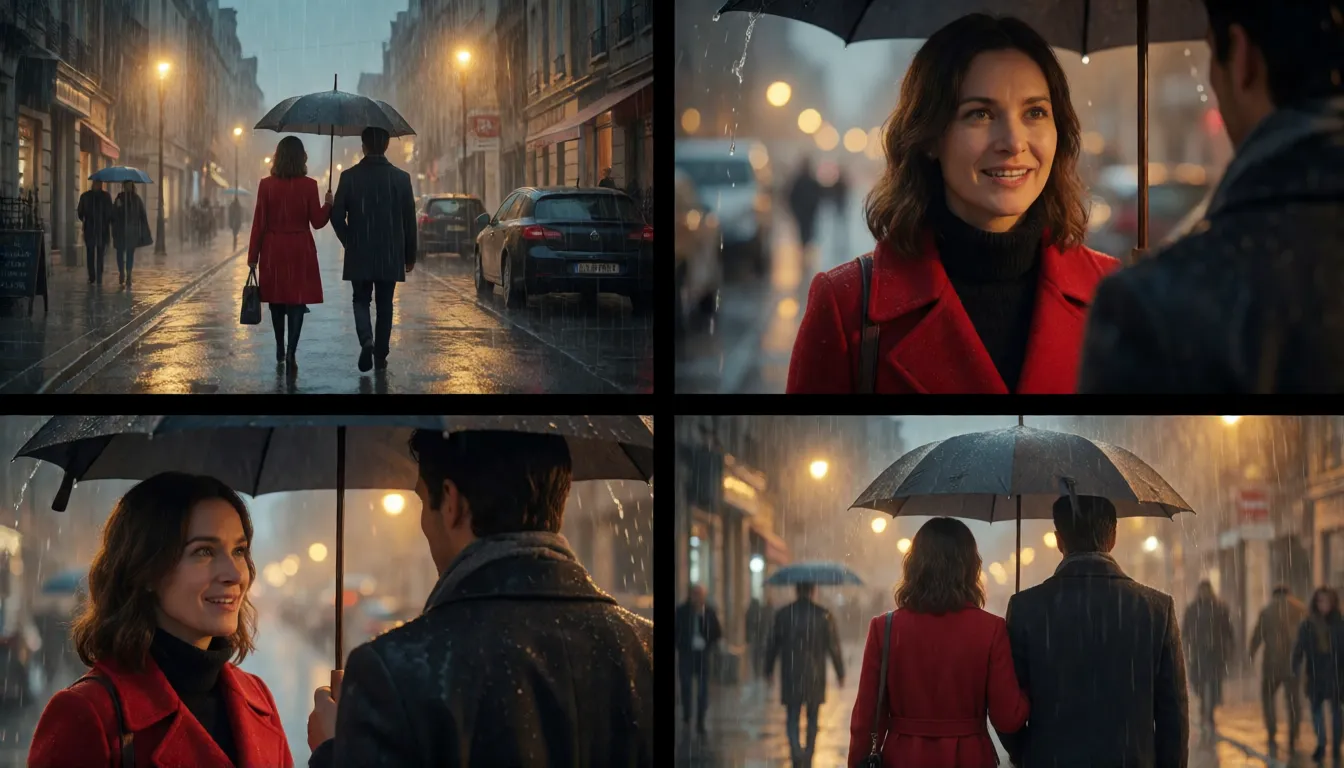
Shot 1 (3s): wide establishing shot, rainy neon street at night, a woman in a red trench coat walks toward camera, slow push-in.
Shot 2 (4s): close-up, she looks up and says: "You're late." soft rain ambience.
Shot 3 (4s): reverse shot over her shoulder, a man under an umbrella replies: "I came anyway." handheld with subtle drift.
Shot 4 (4s): static wide shot, both walk away together, warm streetlight, cinematic film grain.
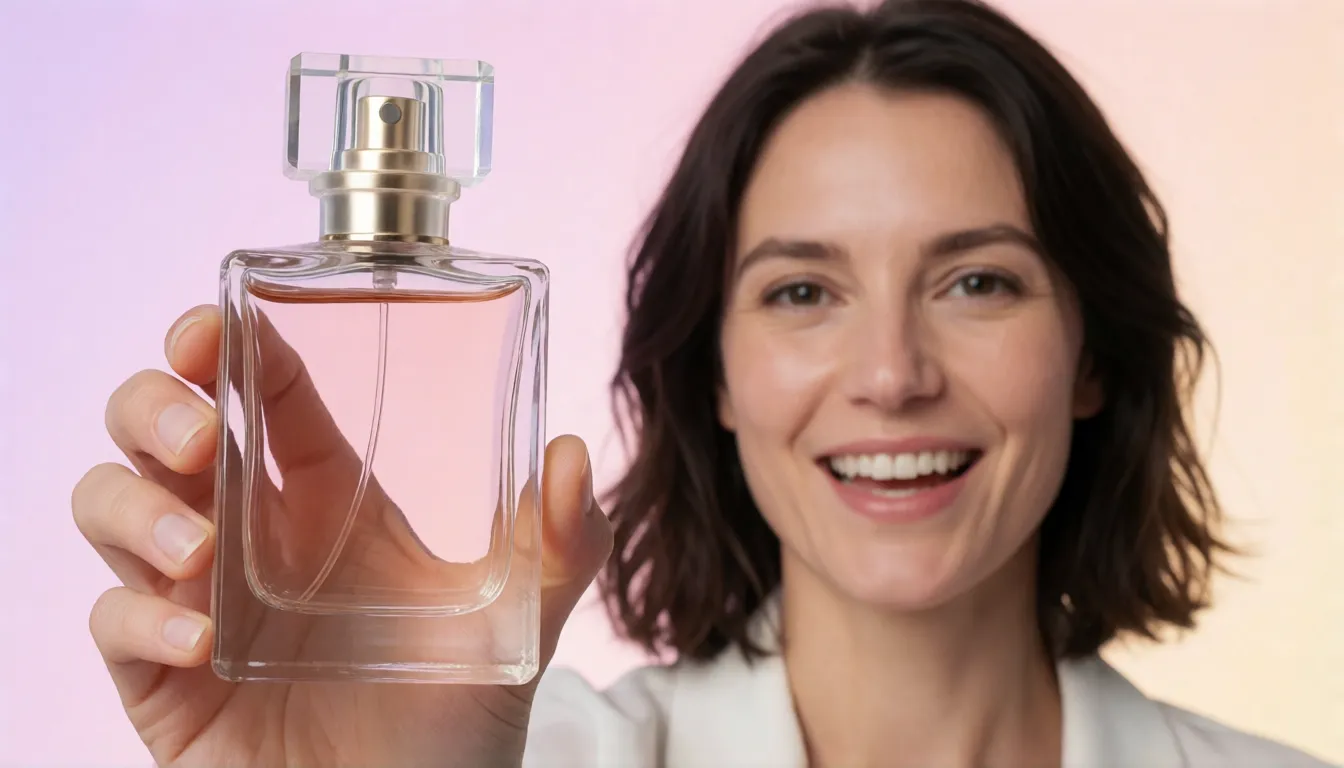
Shot 1 (5s): macro close-up of a glass perfume bottle on wet black stone, orbital pan, droplets catching light.
Shot 2 (5s): medium shot, a model lifts the bottle and says in Spanish, smiling: "Tu nuevo aroma favorito."
Shot 3 (5s): POV shot walking into a sunlit garden party, whip-pan to the model laughing, upbeat music.
Omni, Turbo, 4K and API: which version fits you
The release is a family rather than a single switch. Video 3.0 is the main text-to-video and image-to-video model. Video 3.0 Omni adds multiple reference images and reference videos, the version to pick for recurring characters and branded products. Kling 3.0 Turbo is a faster tier that, according to Morphic's guide, renders at 720p or 1080p in 16:9, 9:16 or 1:1, from 3 to 15 seconds, with prompts of up to 3,072 characters, ideal for testing ideas. CineD reported native 4K output at 30 fps; which plans unlock it differs between platforms, so check before relying on it. Developers can reach the models through an API, which is one more way in alongside the app.
Kling 3.0 vs Kling 4.0, Veo 3 and Seedance 2.0
Choosing a model is mostly about the length and kind of scene you need. This comparison sums up how creators tend to divide the work, based on published reviews and guides rather than lab benchmarks.
| Best for | Worth knowing | |
|---|---|---|
| Kling 3.0 | 15-second multi-shot scenes with dialogue and steady characters | Mature storyboard workflow; a solid middle tier |
| Kling 4.0 | Longer takes of up to 30 seconds and more references | The newer step up when 15 seconds is not enough |
| Veo 3 | Single shots with strong realism and synced sound | Google's model; different strengths in camera and physics |
| Seedance 2.0 | Fast, dynamic motion and multi-shot clips from ByteDance | A popular rival for short-form social video |
What reviewers love and where it still slips
Magic Hour's review praised the 15-second multi-shot storytelling as a real step forward for anyone making narrative content. The same review lists the usual weak spots: complex physics such as splashing water, fire and extreme cloth movement can fall apart, and fingers in tight close-ups are still unreliable. It also points out that Custom mode asks you to plan like an editor. In practice that means keeping hands out of macro shots, avoiding big liquid effects in hero moments, and generating two or three takes of the shot that matters most.
Using official Kling 3.0 vs generating on Spicy AI online
Kling 3.0 has no open weights and no uncensored edition; the official platform moderates prompts and uploads and declines nudity and explicit scenes. Spicy AI offers a similar image-to-video experience with fewer filters for adults (18+): upload a start frame you have rights to and describe the motion.
| Official service | Spicy AI online | |
|---|---|---|
| Content filtering | Strict moderation of prompts and uploads | Fewer filters for adult (18+) content |
| Open weights | No, closed commercial model | Not applicable, runs in the browser |
| Model actually used | Kling 3.0 family | Spicy AI's own image-to-video engine, not Kling |
| Price | Credit-based plans | Free queue after sign-in, with a daily limit |
Turn an adult start frame into a cinematic uncensored clip.
Open image to videoFAQ
When was Kling 3.0 released?
Kling AI launched it on February 4–5, 2026, published the press release on February 6, and widened access worldwide in late March 2026.
How long can a Kling 3.0 video be?
Up to 15 seconds per generation; guides describe a selectable range of 3 to 15 seconds.
How do I make a multi-shot video?
Let Smart Storyboard cut the scene for you, or write Shot 1, Shot 2 and so on with a duration, camera angle and action for each. Reports say one generation holds up to about six shots.
Is there an open-source or uncensored Kling 3.0?
No. It is closed, has no downloadable weights and the official platform is moderated. Open-weights video models such as Wan 2.2 or HunyuanVideo can run locally, but none of them matches multi-shot plus native dialogue in one pass.
Is Kling 3.0 free?
Kling AI sells credit-based plans, and third-party hosts set their own prices, which vary widely. Check the plan page of the service you use before planning long projects.