Uncensored AI Video · Kuaishou
Kling O1: Kuaishou's Model for Generating and Editing Video in One Prompt
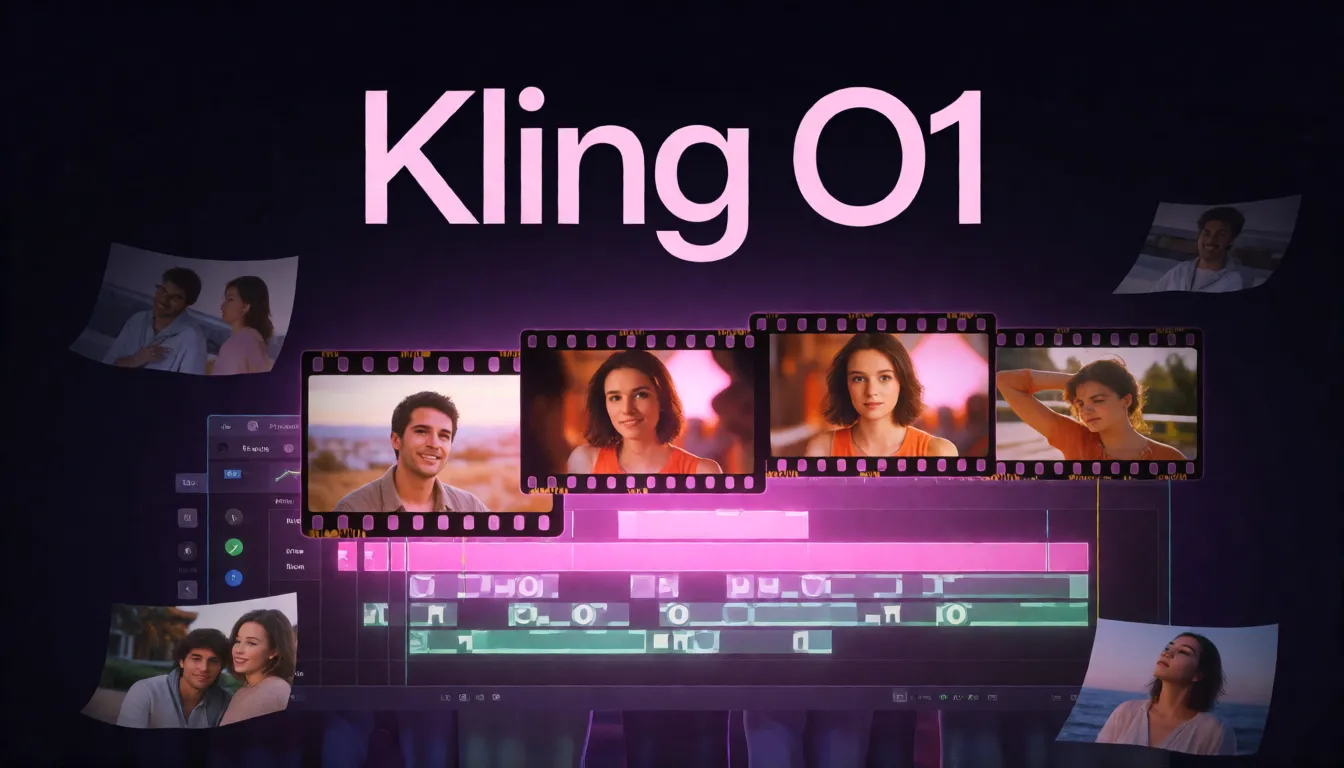
Kling VIDEO O1 (Kling O1 for short) is a model in Kuaishou's Kling AI video line that puts generation and editing into one prompt box: you can create a new clip or rewrite footage you already have. The official model is moderated and has since been upgraded to Kling 3.0 Omni. This guide covers what it can do, the styles it supports, input limits, prompt templates, versions and whether it is open source. For unfiltered adult clips, Spicy AI's image-to-video tool animates a photo in your browser with a different model.
Spicy AI is not Kling O1 — this page currently runs MiniMax H3 Turbo (free tier) and Wan 2.6.
- Free to start
- No filters
- Runs in browser
At a glance
- Developer
- Kling AI (Kuaishou)
- Release
- December 1, 2025 (China); English guide December 15, 2025
- Type
- Unified video generation and editing
- Output
- 3–10 s, 720p/1080p, 24 fps
- References
- Up to 7 images/elements (4 with a video)
- Styles
- Anime, cyberpunk, pixel, ink wash, watercolor, clay, felt
- Audio
- No native generation (original/off)
- Weights
- Closed, no local version
- Status
- Upgraded to Kling 3.0 Omni (Feb 2026)
- Uncensored?
- No, moderated by Kling
Kling O1 Alternative Generator: Uncensored Video with MiniMax H3 Turbo
Image to videoUpload a photo and describe the motion — Spicy AI animates it into a short clip.
Try a prompt
Example prompts are in English, which gives the most reliable results.
What is Kling O1?
Kling VIDEO O1 comes from Kling AI, the video generation business of Kuaishou. It went fully live in mainland China on December 1, 2025, and the English user guide followed on December 15, 2025. Kuaishou calls it the world's first unified multimodal video model, which is the company's own claim. It is built on what Kling calls Multi-modal Visual Language (MVL): text, images, saved elements and one video sit in the same natural-language prompt, and the same model handles text-to-video, reference-based shots, first and last frames, the next or previous shot, and editing. The official guide and API are the ways to use it; output is 3 to 10 seconds at 720p or 1080p and 24 fps.
Why people look for an uncensored Kling O1
Every prompt, image and uploaded clip passes Kling's moderation, and its user policy bans sexually explicit content, impersonation and harassment. Swimwear, lingerie or intimate scenes between adults can fail review, which is why people search for an uncensored version. No such official version exists and the weights are not public, so nothing can be unlocked locally. If you want uncensored generation, you can do it on this site: Spicy AI's image-to-video page animates a photo of a consenting adult with MiniMax H3 Turbo, without content filters.
Video O1 vs Kling Image O1
Search results mix two products. Kling VIDEO O1 is the video generator and editor covered on this page. Kling Image O1, also called Omni Image 1.0, is a separate image model with its own guide dated December 30, 2025: it accepts up to 10 reference images and supports doodle and local edits. They share the O1 and Omni branding and the MVL idea, but they are different models, so check which one a tutorial or reseller page is talking about.
| Kling VIDEO O1 | Kling Image O1 | |
|---|---|---|
| Output | 3–10 s video, 720p/1080p, 24 fps | Still images, 1K/2K |
| Reference inputs | Up to 7 images/elements, 1 video | Up to 10 images |
| Editing | Inpaint, swap subject, background, style | Doodle and local edits, style control |
| Typical job | Shots, edits and shot continuity | Key art, product stills, character sheets |
What it can generate and edit
The point of the model is that generation and editing live together, so you do not jump between a generator, a masking tool and a compositor. On the generation side it supports text-to-video, shots built from reference images or saved elements, a first frame or first-plus-last frame, and a reference video used to create the shot that comes before or after it. On the editing side you upload a clip and describe the change in plain language. The official guide lists these edits:
- Remove content such as passers-by, or add objects and effects like fire or a freeze moment.
- Swap the main subject for an image or element, or replace the background.
- Change weather, environment, camera angle or composition, and key out a green screen.
- Extend a clip, or generate the next or previous shot that matches its motion and camera.
Supported styles and creative effects
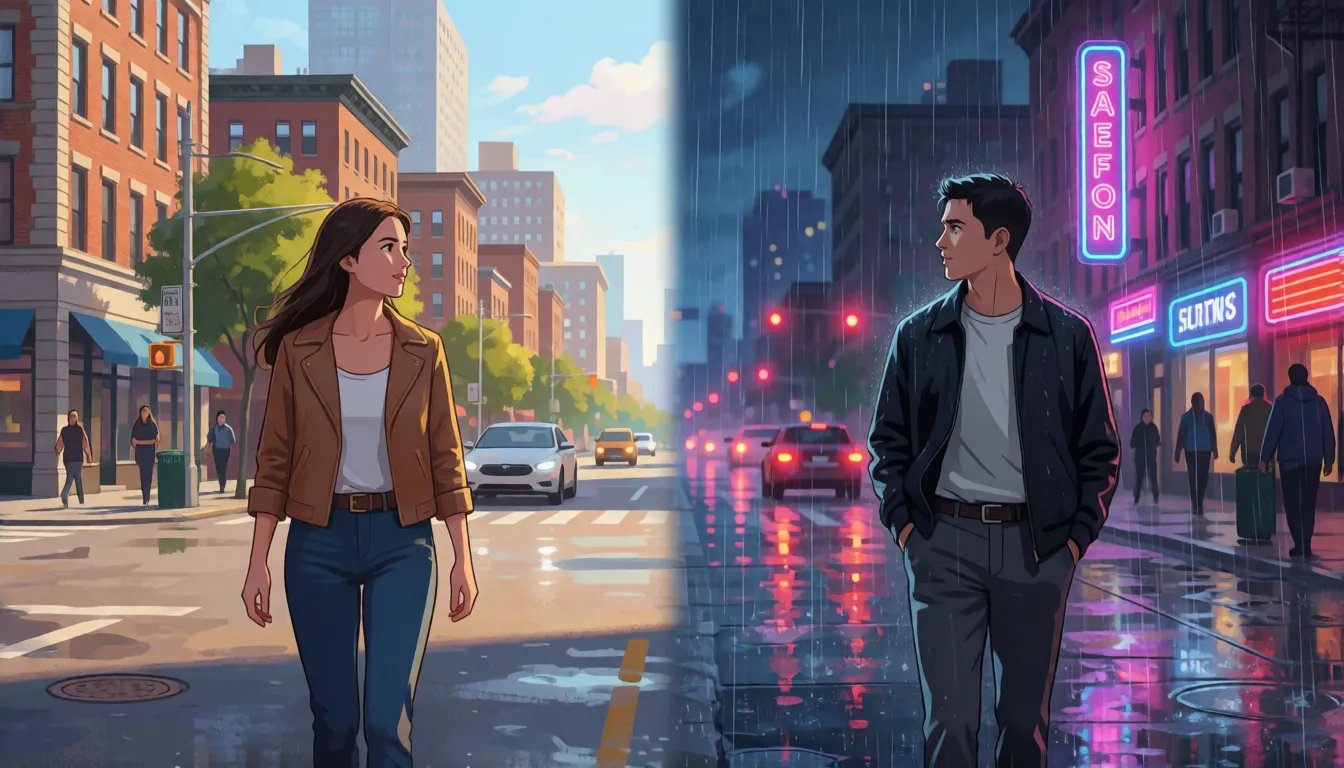
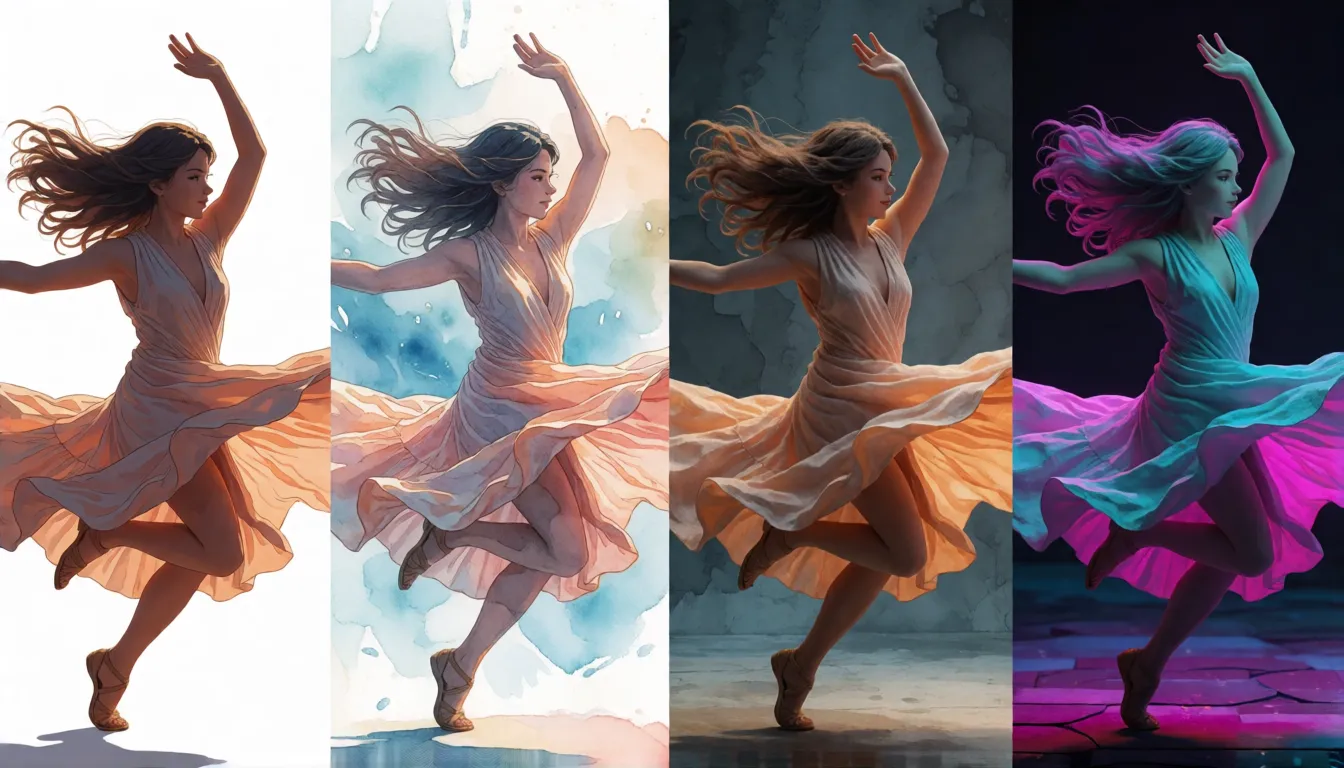
Restyling is one of the most shared demos because one sentence turns an ordinary clip into a different medium while the motion stays the same. The guide shows these looks and effects; results vary with the source footage, and flat, well-lit clips convert more cleanly than dark or busy ones.
| Style or effect | What changes | Works best on |
|---|---|---|
| Anime | Line art, flat shading, stylised faces | Character close-ups, dialogue shots |
| Cyberpunk | Neon palette, night city, haze | Street and vehicle scenes |
| Pixel art | Low-res blocks, limited palette | Simple motion, side views |
| Ink wash and watercolor | Brush texture, soft edges, paper tone | Landscapes, slow camera moves |
| Clay and felt | Handmade, stop-motion feel | Objects, pets, short gestures |
| Weather and time of day | Rain, snow, dusk, night | Exterior shots with a clear sky |
| Fire, freeze and other effects | Adds an element or stops motion | Action beats, product reveals |
Reference images, elements and input limits
Consistency comes from references. Without an input video you can attach up to 7 reference images or elements; once a video is attached the limit drops to 4. An element is a saved subject built from up to 4 photos taken from different angles, and several elements can be combined in one shot, which is how product teams keep a bottle or a mascot identical across clips. Last-frame-only generation is not supported, and when you use both a first and last frame you cannot add reference images.
| Input | Limit |
|---|---|
| Prompt | Up to 2,500 characters |
| Reference images/elements | 7 without video, 4 with video |
| Image files | ≤50 MB, at least 300 px, ratio 1:2.5 to 2.5:1 |
| Reference video | 1 clip, 3–10 s, ≤200 MB, 700–2160 px, 24–60 fps |
| Frames | First frame, or first + last; not last only |
| Output | 3–10 s, 720p or 1080p, 24 fps |
How creators put it to work
Because one model can both shoot and fix a clip, the most practical uses are about iteration rather than one perfect generation. These are the workflows the official guide and early users focus on, from pre-visualisation to brand content:
- Pre-visualisation: block out a scene, then change camera angle or time of day instead of re-generating from scratch.
- Product and brand clips: lock a product with an element built from 4 angles and place it in several settings.
- Clean plates: remove passers-by, signs or a boom mic from footage you already shot.
- Shot continuity: feed one clip and ask for the next shot so motion and framing carry over.
- One clip, many looks: restyle the same performance as anime, watercolor or clay for social cut-downs.
How to write prompts for VIDEO O1
In the prompt you point at inputs by name, for example @image_1, @video_1 or an element name you chose. Give each element a distinct name that is not part of another name or an ordinary word in your prompt, otherwise the model can confuse them. For a new shot, write subject, action and setting first, then light, style and camera. For an edit, start with a verb (remove, change, add, replace), then the target, the source and what must stay untouched. Change one or two things per run and keep clips short: fast motion, occlusion, crowded multi-subject scenes, on-screen text and logos are where edits most often break.
- Order for new shots: subject → action → setting → light → style → camera move.
- Order for edits: verb → what to change → source (@image/@element) → what to keep.
- Name references clearly: @jacket_red and @beach_bg rather than @a and @ab.
- Say what stays the same: "keep the face, lighting and camera unchanged".
Prompt templates you can copy
Swap the bracketed parts for your own inputs. Each template does one job, which matches how the model is meant to be used: generate, then refine with small, targeted edits.
- Remove [the people in the background] from @video_1, keep the main character and the lighting unchanged.
- Change the [jacket] of the [woman] in @video_1 to the [dress] in @image_1.
- Change the background in @video_1 to the [beach at sunset] in @image_2, keep the camera move.
- Change @video_1 to a [watercolor] style, keep the timing of every movement.
- Make it [rain heavily at night] in @video_1, add reflections on the street.
- Generate the next shot after @video_1: the camera keeps tracking left as [she walks into the cafe].
- @product_bottle stands on [a wet black rock by the sea], slow push-in, morning mist, 1080p.
Does it make sound?
Not in the way Kling 2.6 does. The API's audio setting only has two values, original and off, and the documentation has no option for generating voices or sound effects. Our reading is that original keeps the sound of the video you uploaded; what happens when there is no input video is not documented. If you need picture and sound generated together, Kling 2.6 or Kling 3.0 Omni are the official options.
API endpoint and request contents
The API is one way to use the model alongside the Kling app. Developers call POST /omni-video/kling-o1. The contents array can hold prompt, first_frame, last_frame, refer_image, feature_video, base_video and element entries, which map to the modes above: feature_video is a motion or camera reference, base_video is the clip being edited. Options include callback, external_task_id and watermark, and the finished task returns a video URL. The same limits apply as in the app: prompt up to 2,500 characters and output of 3 to 10 seconds at 720p or 1080p.
VIDEO O1 vs Kling 2.6, 3.0 Omni and 4.0
Kuaishou's 3.0 Omni guide of February 6, 2026 states that VIDEO O1 has been upgraded to VIDEO 3.0 Omni, which adds 15-second clips, native audio, voice-driven video, storyboards with multiple shots and stronger element consistency. Kling 4.0 followed on October 14, 2026. O1 is still listed in the API documentation, but it is the previous generation and long-term availability is not promised. No independent benchmark compares their quality, so this table sticks to published specs.
| VIDEO O1 | Kling 2.6 | Kling 3.0 Omni | |
|---|---|---|---|
| Focus | Generation + editing in one model | Picture and sound in one pass | Successor to O1 |
| Max length | 10 s | 10 s | 15 s |
| Native audio | No (original/off) | Yes | Yes |
| Edits existing video | Yes | No | Yes |
| Multi-shot storyboard | No | No | Yes |
Is Kling O1 open source? Open alternatives and uncensored options
No. Kuaishou has not published weights for VIDEO O1, so there is no local or offline copy, and any download claiming to be one is not official. It runs only on Kling's own platform and API, plus third-party hosts that resell API access; new accounts get some trial credits, but there is no unlimited free tier. Because the model is closed, an "uncensored Kling O1" does not exist: every request goes through Kuaishou's moderation. The closest open-source relative is Alibaba's Wan2.1-VACE, released under Apache 2.0 in 1.3B and 14B sizes, which also combines reference-to-video, video-to-video and masked editing such as swapping or extending content in one model. Since its weights can be downloaded and run on your own GPU, it has no hosted filter, and the community shares fine-tunes for it; that is the realistic route to an unrestricted O1-style editing workflow, with the responsibility for legal, consensual use on you. If you only need to animate a photo of an adult without filters, Spicy AI's image-to-video tool does that in the browser. Some third-party sites also advertise 4K output for O1; the official API lists only 720p and 1080p.
Strengths and weak spots in practice
Judged against its own documentation, the strongest part is targeted editing: changing a background, a garment or the weather while keeping the original motion is something most generators cannot do at all. Reference elements make it useful for recurring products and characters. The weak spots are the same ones the guide warns about: fast action, people overlapping, crowded scenes, readable text and logos. The 10-second ceiling and lack of generated sound also mean longer or talking scenes need 3.0 Omni or a separate audio pass. This is our assessment of the published behaviour, not a lab benchmark.
Step by step: an uncensored O1-style clip on Spicy AI
Spicy AI does not run the Kling model and cannot edit an existing video, but it covers the use case the official model blocks: animating a photo of an adult without content filters. The steps are short:
- Open the generator above or the image-to-video page; MiniMax H3 Turbo is preselected.
- Upload a sharp, well-lit photo of a consenting adult (18+); it becomes the first frame.
- Write one motion and one camera move, the same way you would write a first-frame prompt.
- Generate, review the clip, then change one detail of the prompt and run it again.
Alternatives to VIDEO O1
Which one fits depends on the job. To edit footage you already have with several reference images, VIDEO O1 or its successor 3.0 Omni are the official choices. For dialogue or sound effects generated with the picture, look at Kling 2.6 or 3.0 Omni, and for the newest model, Kling 4.0. If what you want is adult content that Kling's moderation rejects, none of the official versions will do it; Spicy AI's image-to-video tool turns a photo of an adult into a short clip without filters, using MiniMax H3 Turbo on the free queue and Wan 2.6 for paid runs.
What you can create
Boudoir and fashion clips
Animate a lingerie or swimwear photo of an adult model into a short, cinematic motion clip.
Romantic scenes
Turn a couple's portrait into a slow, intimate moment with camera movement and soft light.
Character motion tests
Try poses, turns and expressions for an adult character before committing to a longer project.
Prompt tips for Kling O1-style results
- Start from a sharp, well-lit photo; the first frame sets the look of the whole clip.
- Describe one clear motion and one camera move per prompt, as you would in an O1 edit.
- Keep clips short and simple: fast action and crowds are where AI video breaks most.
- Write prompts in English for the most reliable results.
- Only use photos of adults (18+) who agreed to it, never real people without consent.
Using official Kling O1 vs generating online on Spicy AI
| Official service | Spicy AI online | |
|---|---|---|
| Content filters | Set by Kuaishou | No content filters |
| Open weights | No | Not needed — runs in the browser |
| Model | Kling O1 | MiniMax H3 Turbo (free tier) and Wan 2.6 |
| Price to start | Varies by plan | Free tier available |
- Image-to-video in the browser
- Free queue at 0 credits (sign in, daily limit)
- Portrait (9:16) and landscape (16:9) clips
FAQ
Is Kling O1 uncensored?
No. It is moderated by Kuaishou and its user policy forbids sexually explicit content. There is no official or downloadable uncensored version.
Does Spicy AI run this model?
No. Spicy AI's image-to-video page uses MiniMax H3 Turbo on the free queue and Wan 2.6 for paid runs, so results will not match O1 and it cannot edit an existing video.
Is O1 a video or an image model?
Usually the video model, Kling VIDEO O1. Kling Image O1 (Omni Image 1.0) is a separate image model with up to 10 reference images.
How long can its videos be?
3 to 10 seconds per generation at 720p or 1080p and 24 fps. Kling 3.0 Omni raised the limit to 15 seconds.
How many reference images can I use?
Up to 7 images or elements without an input video, and up to 4 when a video is attached. Each element can be built from up to 4 photos.
Is Spicy AI affiliated with Kuaishou?
No. Spicy AI is an independent platform and is not affiliated with or endorsed by Kuaishou. Kling O1 is a trademark of its respective owner.
Is it free?
You can start free: sign in and Spicy AI's free video queue animates your photo with MiniMax H3 Turbo at 0 credits, with a daily limit. The fast queue, other video models and longer clips use credits.
Sources
- Wan2.1 and Wan2.1-VACE repository (Wan-Video, GitHub)
- Kling VIDEO O1 user guide (Kling AI)
- VIDEO O1 omni-video API reference (Kling AI)
- Kling VIDEO 3.0 Omni user guide (Kling AI)
- Kling 4.0 user guide (Kling AI)
- Kling Image O1 user guide (Kling AI)
- Kling user policy and terms (Kling AI)
- Launch report, December 1, 2025 (IT之家)
Spicy AI is not affiliated with Kuaishou. Kling O1 and other product names are trademarks of their respective owners and are used here for identification only. All content must depict adults (18+).